What is 2FA and Why You Need It — Complete Guide 2026
Two-Factor Authentication (2FA) adds an extra layer of security to your accounts. Learn what 2FA is, how it works, the different types, and why every account needs it today.
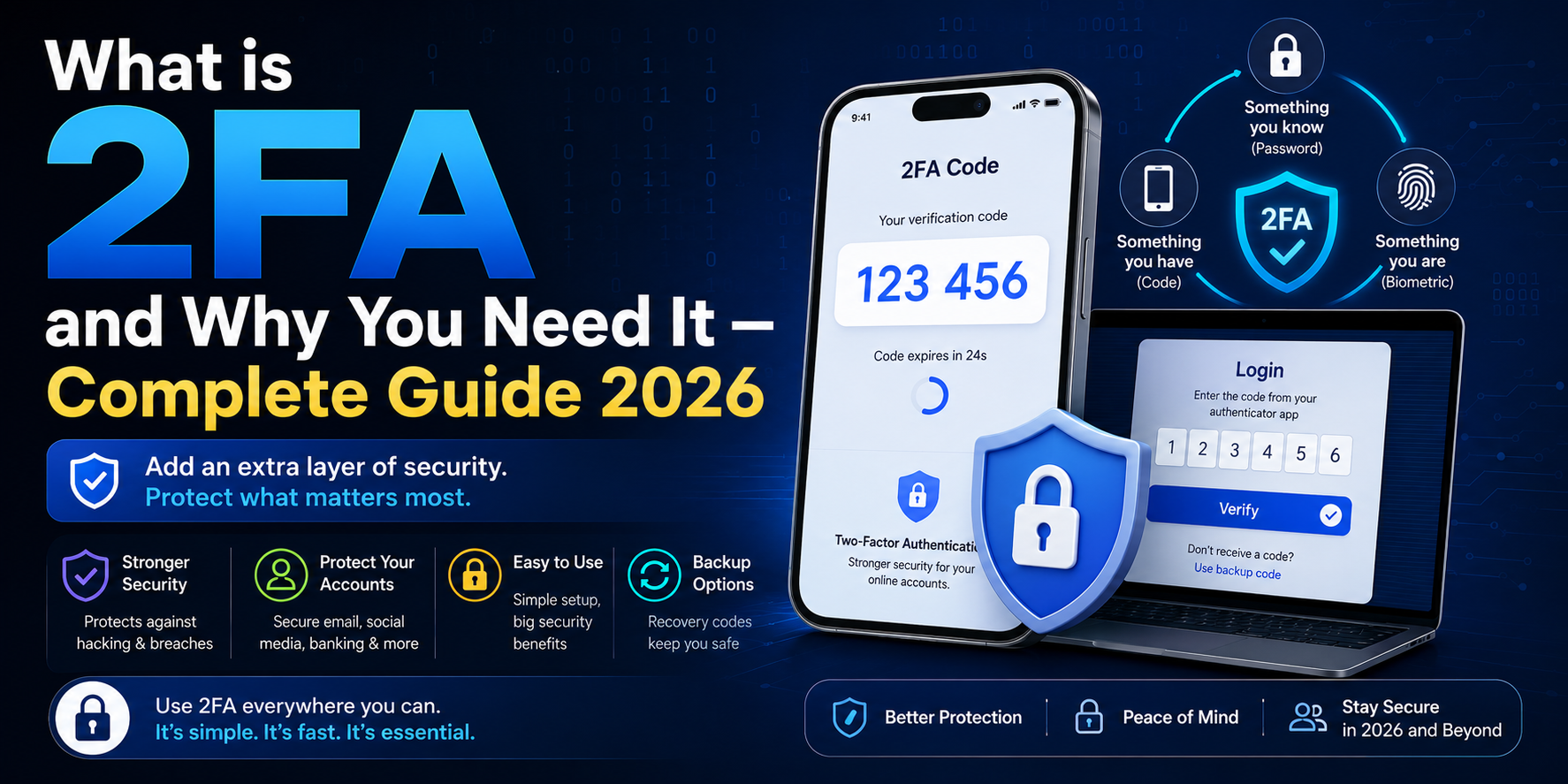
What is Two-Factor Authentication (2FA)?
Two-Factor Authentication (2FA) is a security process that requires you to verify your identity in two different ways before accessing your account. Instead of just entering a password, you also need to provide a second form of verification — usually a 6-digit code from your phone.
Think of it like your bank's ATM: you need both your ATM card (something you have) and your PIN (something you know) to withdraw money. Even if someone steals your card, they can't access your account without the PIN. 2FA works the same way for your online accounts.
Why is 2FA So Important?
Passwords alone are no longer enough to protect your accounts. Here's why:
- 🔓 Data breaches happen constantly — billions of passwords have been leaked online
- 🎣 Phishing attacks are rising — hackers trick you into revealing your password
- 🤖 Brute force attacks — automated tools can guess weak passwords in seconds
- ♻️ Password reuse — if you use the same password on multiple sites, one breach exposes all accounts
With 2FA enabled, even if a hacker gets your password, they still cannot access your account without the second factor — which is usually your phone.
How Does 2FA Work?
The process is simple and takes less than 30 seconds:
- You enter your username and password as usual
- The website asks for a second verification
- You open your authenticator app and enter the 6-digit code
- ✅ Access granted — you're in!
The 6-digit code changes every 30 seconds, so even if someone sees your code, it's useless after half a minute.
Types of Two-Factor Authentication
1. Authenticator App (TOTP) — Most Recommended
TOTP (Time-based One-Time Password) is the most secure and widely recommended form of 2FA. Apps like Google Authenticator, Authy, and 2FA.AC generate a new 6-digit code every 30 seconds. These codes are generated locally on your device — no internet required.
2. SMS One-Time Password
A 6-digit code is sent to your registered phone number via text message. While better than no 2FA, SMS is considered less secure because of SIM-swapping attacks, where a hacker can transfer your phone number to their SIM card.
3. Hardware Security Key
A physical device like YubiKey that you plug into your computer. This is the most secure option available, used by journalists, activists, and high-security professionals. The downside is cost — these keys typically run $25–$50.
4. Push Notifications
Some apps like Duo Security send a push notification to your phone. You simply tap "Approve" to verify the login. Easy and convenient, but requires internet access.
5. Backup Codes
These are single-use codes generated when you set up 2FA. Store them safely — they're your lifeline if you lose access to your phone or authenticator app.
What Accounts Should You Protect with 2FA?
The short answer: every account that supports it. But if you're prioritizing, start with these:
- 📧 Email accounts (Gmail, Outlook, Yahoo) — your email is the master key to all other accounts
- 🏦 Banking and financial services — protect your money at all costs
- 📱 Social media (Instagram, Facebook, Twitter/X, LinkedIn)
- 🛒 Shopping platforms (Amazon, eBay, PayPal)
- 💼 Work and productivity tools (Slack, GitHub, Google Workspace)
- ☁️ Cloud storage (Google Drive, Dropbox, iCloud)
- 🎮 Gaming accounts (Steam, PlayStation, Xbox)
How to Set Up 2FA — Quick Guide
Step 1: Download an Authenticator App
Install one of these free apps on your smartphone:
- Google Authenticator — Simple and reliable, available on Android and iOS
- Authy — Great for multi-device support and cloud backups
- Microsoft Authenticator — Best for Microsoft and Office 365 accounts
Or use 2FA.AC — a free, browser-based TOTP generator that works directly in your browser with no app download needed.
Step 2: Go to Security Settings
On whatever website you want to protect, navigate to:
- Settings → Security → Two-Factor Authentication
- Or look for "2-Step Verification" or "Multi-Factor Authentication"
Step 3: Scan the QR Code
The website will display a QR code. Open your authenticator app, tap "Add account" or the "+" button, and scan the QR code. Your account is now linked.
Step 4: Enter the Verification Code
Your app will immediately show a 6-digit code. Enter it on the website to confirm the setup is working correctly.
Step 5: Save Your Backup Codes
The website will give you a set of one-time backup codes. Save these in a secure location — a password manager, printed paper kept in a safe, or an encrypted note. Never save them in your email or cloud storage without encryption.
The 3 Factors of Authentication Explained
Authentication factors fall into three categories:
- 🧠 Something you know — Password, PIN, security question
- 📱 Something you have — Phone, hardware key, smart card
- 👁️ Something you are — Fingerprint, face recognition, retina scan
True 2FA uses two different categories. Using a password + TOTP code is real 2FA. Using two passwords is NOT 2FA — it's just two passwords.
Common 2FA Myths — Busted
❌ Myth: "2FA is too complicated"
✅ Reality: Setting up 2FA takes less than 2 minutes. After that, logging in only takes an extra 5 seconds — just open your app and type the code.
❌ Myth: "I'll lose access if I lose my phone"
✅ Reality: That's what backup codes are for. Save them when you set up 2FA and you'll always have a way back in. Many apps like Authy also offer encrypted cloud backups.
❌ Myth: "My password is strong enough"
✅ Reality: Even the strongest passwords can be leaked through data breaches that have nothing to do with you. 2FA protects you even when your password is compromised.
❌ Myth: "Only big companies need 2FA"
✅ Reality: Personal accounts — especially email and banking — are prime targets for hackers. Everyone needs 2FA.
2FA vs MFA — What's the Difference?
MFA (Multi-Factor Authentication) is the broader term that includes any combination of two or more factors. 2FA is a specific type of MFA that uses exactly two factors. All 2FA is MFA, but not all MFA is 2FA — some systems require three or more factors for ultra-high security environments.
Real-World 2FA Success Stories
In 2016, Google reported that enabling 2FA on Gmail accounts blocked 100% of automated bot attacks and 99% of phishing attacks. Users who had 2FA enabled were essentially immune to the most common forms of account hijacking.
Similarly, when major platforms like Twitter, Instagram, and GitHub have suffered password database breaches, users with 2FA enabled were completely unaffected — their accounts remained secure even after their passwords were exposed.
Start Protecting Your Accounts Today
Setting up 2FA is one of the most impactful things you can do for your online security — and it's completely free. Start with your email account, then work your way through your most important accounts.
Need to generate a TOTP code right now? Use 2FA.AC — it's free, works instantly in your browser, and requires no signup or app download.
Frequently Asked Questions
Secure Your Accounts with 2FA
Enable two-factor authentication and protect your accounts from unauthorized access.
Explore 2FA Tools →